


At some point, your “temporary” remote setup stopped being temporary and you look for ergonomic home office setup.
Maybe it started at the kitchen table.
Then a basic desk.
Then a chair that looked decent online but feels different at 3:17 PM.
By late afternoon, your shoulders creep forward.
Your lower back shifts.
Your wrists angle upward on the laptop.
You don’t notice it in the morning.
You feel it at the end of the week.
Remote work is sustainable—but only if your setup is.
This is the full ergonomic home office setup blueprint designed specifically for remote workers working 6–10 hours daily.
Why Remote Work Is Harder on Your Body
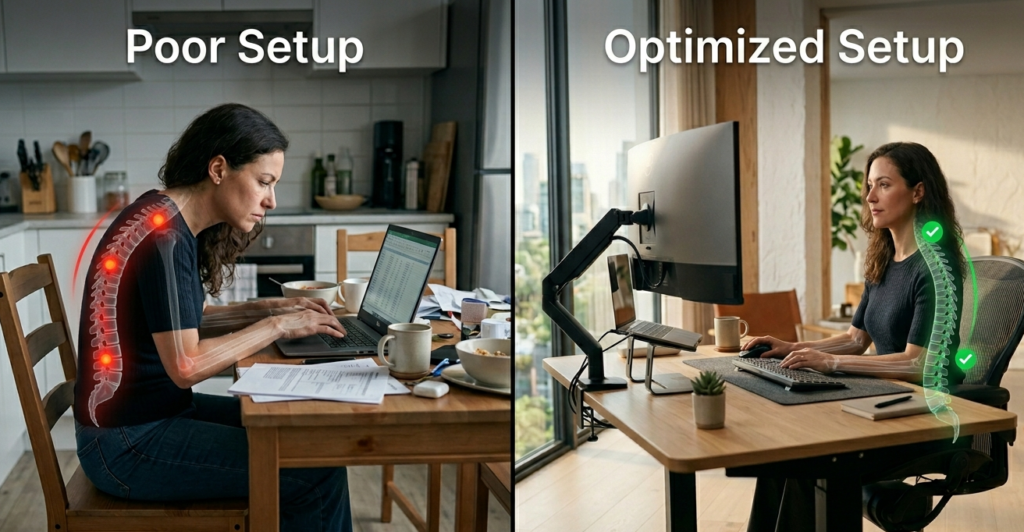
Corporate offices are engineered environments.
Homes usually aren’t.
Remote workers often:
- Use laptops below eye level
- Sit in non-adjustable chairs
- Skip structured movement
- Work longer because “there’s no commute”
The issue isn’t one bad posture moment.
It’s repetition.
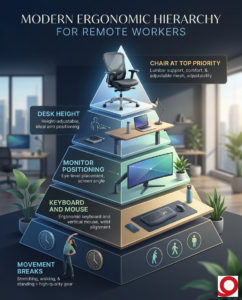
The Ergonomic Hierarchy (Fix in This Order)
If you improve only one thing at a time, follow this:
| Priority | Component |
| 1 | Chair |
| 2 | Desk height |
| 3 | Monitor positioning |
| 4 | Keyboard & mouse |
| 5 | Movement breaks |
Most people start with gadgets.
Start with structure.
Step 1: The Chair (Your Structural Foundation)
Your chair controls spinal alignment.
Mayo Clinic highlights proper seat support as essential for reducing strain during long sitting sessions.
Look for:
- Adjustable lumbar support
- Seat depth adjustment
- Height adjustability
- Stable recline tension
Steelcase Leap
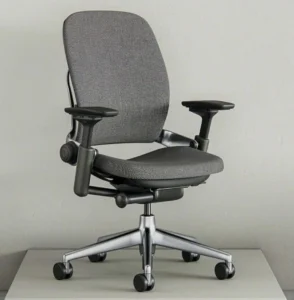
Best for lumbar adjustability and adaptive cushioning.
If you work remotely full-time, the chair is not the place to cut corners.
Quick Check
Right now are your shoulders relaxed?
Or slightly lifted?
If lifted, your desk height may be the issue.
Step 2: Desk Height
The UK Health and Safety Executive (HSE) emphasizes proper workstation height to prevent musculoskeletal strain.
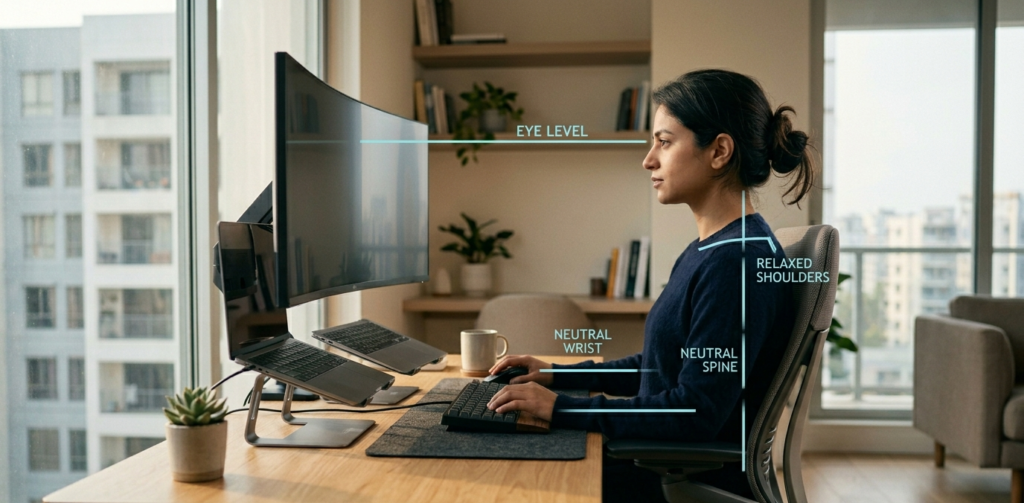
Your elbows should rest at roughly 90 degrees with shoulders relaxed.
Too high → shoulder tension.
Too low → forward hunching.
Standing Desk Upgrade (Optional but Helpful)
Alternating posture reduces static fatigue.
Uplift V3 Standing Desk
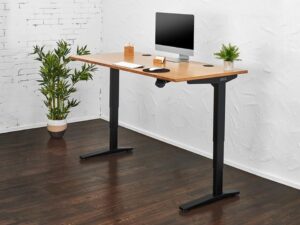
Standing isn’t mandatory.
Alternating is beneficial.
Step 3: Monitor Positioning (Most Common Mistake)
Laptop screens are almost always too low.
The Canadian Centre for Occupational Health and Safety recommends positioning the top of your screen at or slightly below eye level.
Ideal positioning:
- 20–30 inches from face
- Neutral neck
- No chin tilt downward
Simple Fix
Rain Design mStand
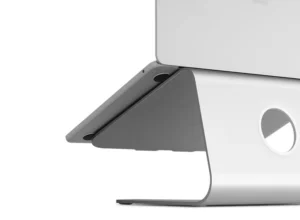
Raise the screen.
Use an external keyboard.
That alone fixes most neck strain.
Step 4: Keyboard & Mouse Alignment
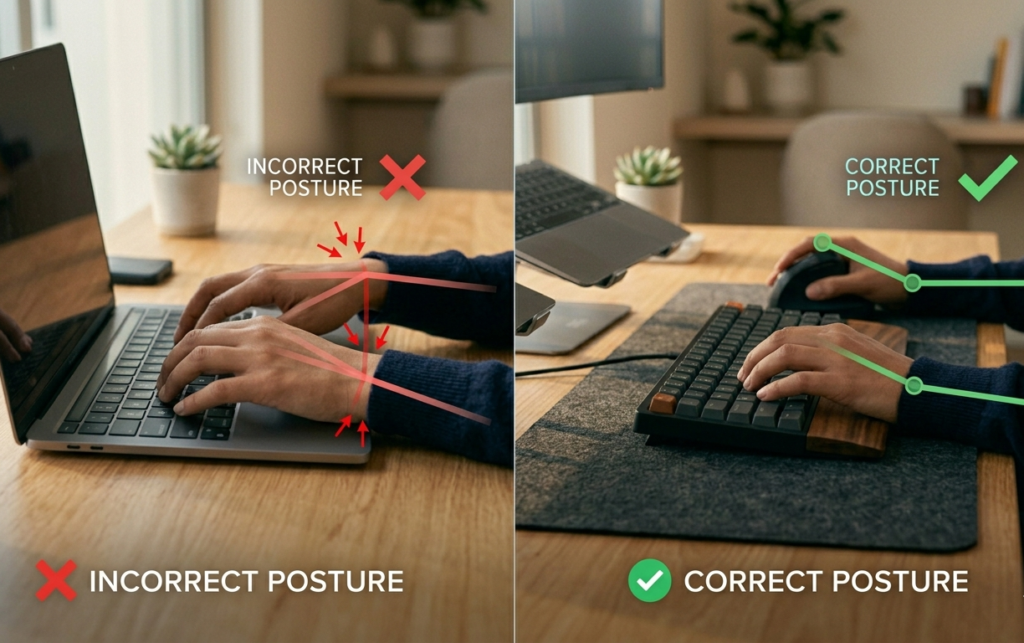
Your wrists should remain neutral not bent upward.
NIH explains that awkward wrist positioning contributes to repetitive strain over time.
Consider:
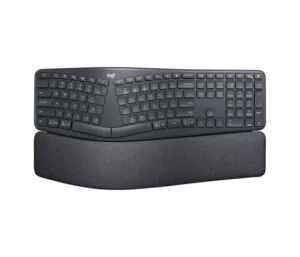
Logitech ERGO K860 Keyboard
Logitech MX Vertical Mouse
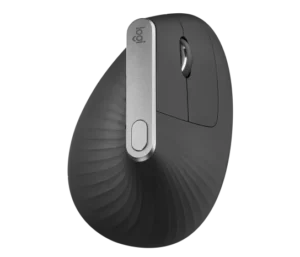
These aren’t mandatory but heavy typists usually notice the difference quickly.
Step 5: Movement Strategy
Even a perfect chair fails without movement.
Harvard Health notes that avoiding prolonged static posture is key for musculoskeletal comfort.
Every 60–90 minutes:
- Stand for 2–5 minutes
- Stretch shoulders
- Walk briefly
- Adjust recline tension
Remote work removes natural interruptions.
You must build them back intentionally.
60-Second Remote Ergonomic Audit
Ask yourself:
- Feet flat on the floor?
- Knees level with hips?
- Elbows near 90 degrees?
- Wrists neutral?
- Monitor at eye level?
- Lower back supported?
More than two “no” answers?
That’s your upgrade starting point.
Setup Tiers
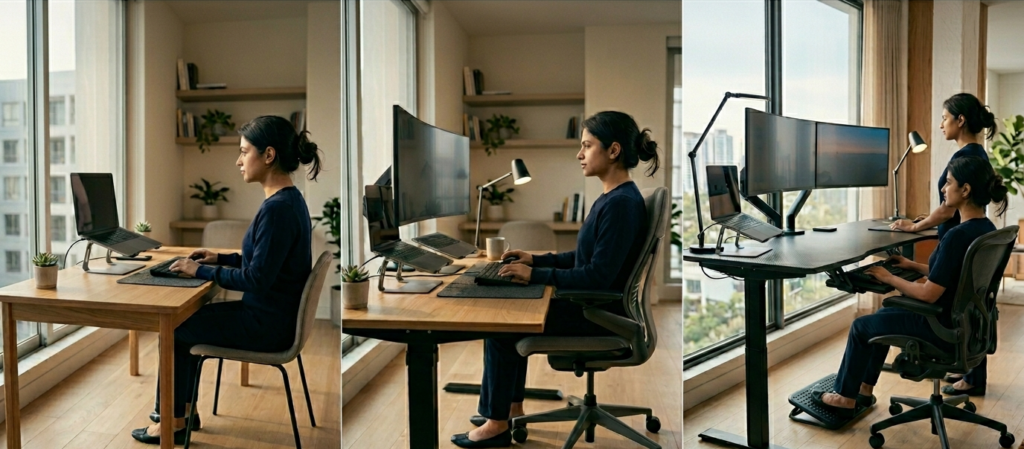
Essential Setup
- Adjustable chair
- Laptop stand
- External keyboard
- Basic ergonomic mouse
Optimized Setup
- Premium chair
- External monitor
- Laptop stand
- Ergonomic keyboard
- Vertical mouse
Premium Long-Term Setup
- Herman Miller Aeron or Steelcase Leap
- Electric standing desk
- Monitor arm
- Split keyboard
- Vertical mouse
- Anti-fatigue mat
Real-World Insight
Most remote workers don’t suffer because they bought the wrong chair.
They suffer because they didn’t adjust it.
Ergonomics is calibration.
The 4 PM Test
How do you feel at 4 PM?
- Neck tight?
- Lower back stiff?
- Wrists sore?
- Shoulders elevated?
Your body tells you exactly which component needs attention.
Final Perspective
Remote work isn’t temporary anymore.
Your body doesn’t care where you’re sitting.
It responds to alignment, pressure, and repetition.
Fix the structure first.
Upgrade strategically.
Adjust continuously.
Sustainable comfort is built, not bought in one click.
FAQ
What is the best ergonomic setup for remote workers?
An adjustable chair, proper desk height, monitor at eye level, neutral wrist positioning, and regular movement breaks.
Do remote workers need a standing desk?
Not mandatory, but alternating sitting and standing can reduce fatigue.
What height should my monitor be?
The top of the screen should sit at or slightly below eye level, about 20–30 inches from your face.
Is an ergonomic chair worth it for remote work?
For individuals working 6–10 hours daily, proper lumbar support and adjustability significantly improve long-term comfort.