


Most people don’t think about their keyboard until something starts to ache.
It’s subtle at first.
A little wrist tightness.
Maybe some forearm tension.
You shake your hands out between emails.
If you work remotely and type several hours a day, your keyboard layout matters more than you think.
This is a deep comparison of split keyboard vs standard keyboard, not from a marketing perspective, but from a long-hour remote work reality.
First: What Actually Causes Typing Discomfort?

Typing discomfort rarely comes from the keys themselves.
It usually comes from:
- Wrist extension (bending upward)
- Ulnar deviation (wrists angled outward)
- Shoulder internal rotation
- Long periods of static posture
The NIH explains that sustained awkward wrist positioning contributes to repetitive strain injuries and carpal tunnel–related symptoms.
So the question becomes:
Which keyboard layout better supports neutral alignment?
Standard Keyboard: What’s Really Happening
A traditional keyboard:
- Places keys in a flat, rectangular layout
- Angles your wrists slightly outward
- Keeps both hands close together
- Often encourages slight wrist extension
For casual users, that’s fine.
For someone typing 4–8 hours daily? The small angles compound.
The Canadian Centre for Occupational Health and Safety emphasizes maintaining neutral wrist posture during keyboard work.
Most standard keyboards do not naturally encourage neutral alignment.
You can compensate with desk height and arm support but the layout itself remains fixed.
Split Keyboard: What Changes Mechanically?
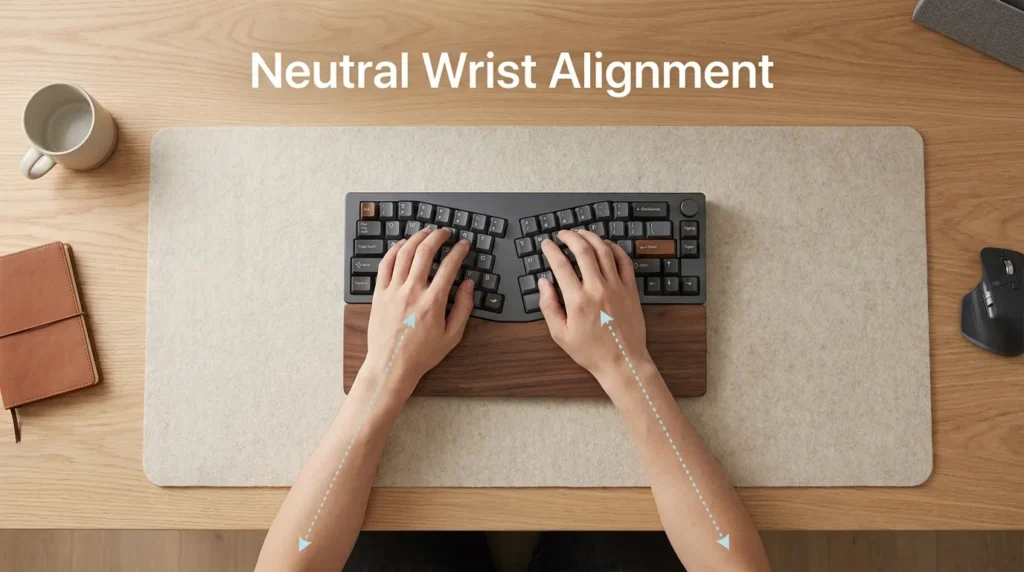
A split keyboard separates the left and right key clusters.
There are two main types:
1️⃣ Fixed split (curved but connected)
2️⃣ Fully split (two independent halves)
What this does biomechanically:
- Reduces inward shoulder rotation
- Decreases ulnar deviation
- Encourages straighter wrist alignment
- Allows more natural arm spacing
The CDC notes that workstation design should minimize awkward joint angles to reduce musculoskeletal strain.
Split keyboards are built around that principle.
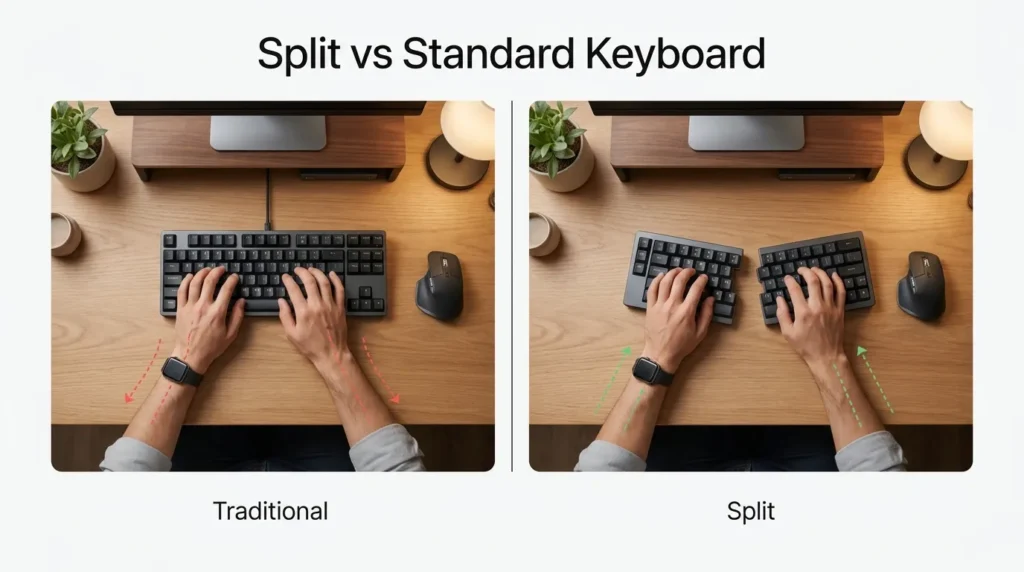
Deep Comparison: Alignment
| Factor | Standard Keyboard | Split Keyboard |
| Wrist angle | Often angled outward | More neutral |
| Shoulder position | Arms pulled inward | More natural spacing |
| Wrist extension | Common | Reduced |
| Adjustability | Limited | Moderate to high |
If your wrists naturally angle outward while typing, a split layout often feels immediately different.
Adjustment Period (This Is Important)
Switching to a split keyboard is not instant.
Most remote workers experience:
Week 1 → Feels unfamiliar
Week 2 → Muscle memory adjusts
Week 3 → Feels normal
It’s similar to adjusting to a new ergonomic chair.
The UK Health and Safety Executive emphasizes that adaptation to ergonomic changes takes time.
If you quit after two days, you won’t see the benefit.
Best Split Keyboards for Remote Workers
Logitech ERGO K860 (Fixed Split, Best Overall Balance)
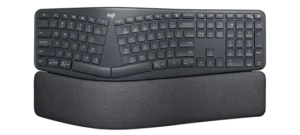
Why it works:
- Curved split layout
- Built-in wrist support
- Slight tenting angle
- Easy transition from standard layout
Best for:
Remote workers who want ergonomic improvement without extreme learning curve.
Kinesis Freestyle2 (Fully Split Option)
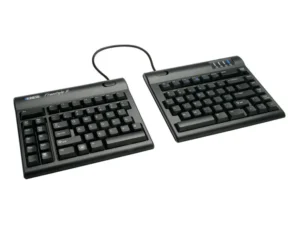
Why it works:
- Two separate halves
- Adjustable shoulder-width positioning
- Optional tenting kits
Best for:
Users with shoulder tension or very long typing sessions.
This layout allows truly customized positioning.
Best Standard Keyboard for Remote Work
Not all standard keyboards are equal.
Low-profile designs reduce wrist extension compared to thick mechanical boards.
Logitech MX Keys (Improved Standard Layout)
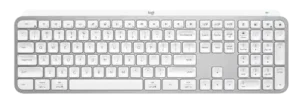
Why it works:
- Low profile
- Comfortable key travel
- Cleaner wrist angle than many traditional keyboards
If you prefer minimal adjustment and feel no discomfort, this is a strong option.
Which Is Better for Preventing Wrist Pain?
The NIH explains that preventing wrist strain involves:
- Neutral wrist positioning
- Reduced repetitive stress
- Proper workstation alignment
- Regular movement breaks
A split keyboard supports neutral positioning more directly.
But if:
- Your desk height is wrong
- Your chair armrests are misaligned
- Your wrists float unsupported
Even a split keyboard won’t solve the problem.
Layout helps. Setup matters more.
When a Split Keyboard Makes the Most Sense
You should seriously consider switching if:
- You type more than 4–5 hours daily
- You feel wrist tightness by afternoon
- Your wrists angle outward while typing
- You’ve had mild RSI symptoms before
For light typists, the difference may be small.
For heavy remote professionals, the difference can feel significant after adaptation.
Shoulder & Upper Back Considerations
Most people focus only on wrists.
But shoulder internal rotation is a silent contributor to upper back tension.
Split keyboards allow your hands to rest more shoulder-width apart.
Mayo Clinic highlights that maintaining relaxed shoulders during desk work reduces upper back strain.
That’s an often overlooked benefit.
The 4 PM Typing Test
By late afternoon:
- Do you shake your hands out?
- Do your wrists feel compressed?
- Do your shoulders creep forward?
If yes, your keyboard layout may be contributing.
If no discomfort exists, upgrading may not be urgent.
Final Recommendation Framework
Choose a Split Keyboard if:
- You type heavily every day
- You notice wrist or shoulder strain
- You’re building a long-term remote setup
- You’re willing to adapt for 1–3 weeks
Choose a Standard Keyboard if:
- You feel no discomfort
- You prefer minimal transition
- You use shortcuts more than mouse
- Your overall workstation is well aligned
The best keyboard isn’t the most expensive one.
It’s the one that supports neutral alignment for how you work.
FAQ
Are split keyboards better than standard keyboards?
Split keyboards often promote more neutral wrist alignment and shoulder positioning, which may improve comfort during long typing sessions.
How long does it take to adjust to a split keyboard?
Most users adapt within one to three weeks.
Can a split keyboard prevent carpal tunnel?
It may support better wrist positioning, but full workstation alignment and movement habits are also important.Is a mechanical keyboard ergonomic?
Switch type matters less than wrist angle, key layout, and desk height.