


If you work remotely, your keyboard probably sees more action than any other device on your desk.
Emails before 9 AM.
Back-to-back Slack messages.
Spreadsheets.
Reports.
Late-afternoon revisions.
And if your wrists feel tight or your fingers feel fatigued by the end of the day, your keyboard may be part of the reason.
This guide breaks down the best ergonomic keyboards for remote workers, not gamers or casual users but people typing 4–8+ hours daily.
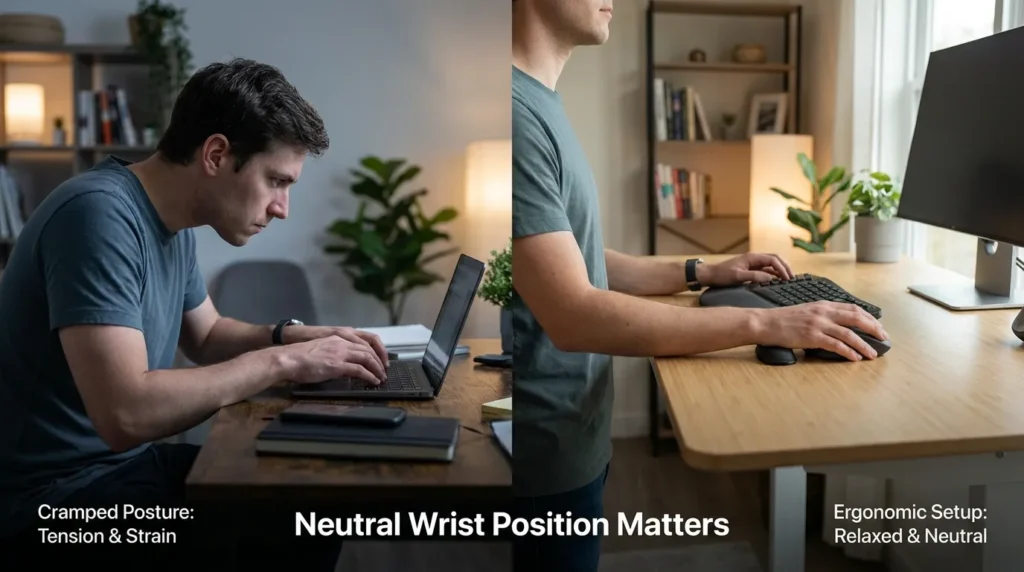
Why Remote Workers Need Better Keyboard Ergonomics
Working from home often means:
- Longer uninterrupted typing sessions
- Fewer natural breaks
- Laptop-based setups
- Smaller desks with poor wrist support
The NIH explains that sustained awkward wrist positioning can contribute to repetitive strain and carpal tunnel–related symptoms.
The goal of an ergonomic keyboard isn’t speed.
It’s alignment.
What Makes a Keyboard “Ergonomic”?
The Canadian Centre for Occupational Health and Safety emphasizes maintaining neutral wrist posture during keyboard use.
That usually means:
- Minimal wrist extension (not bent upward)
- Reduced ulnar deviation (wrists not angled outward)
- Forearms supported
- Shoulders relaxed
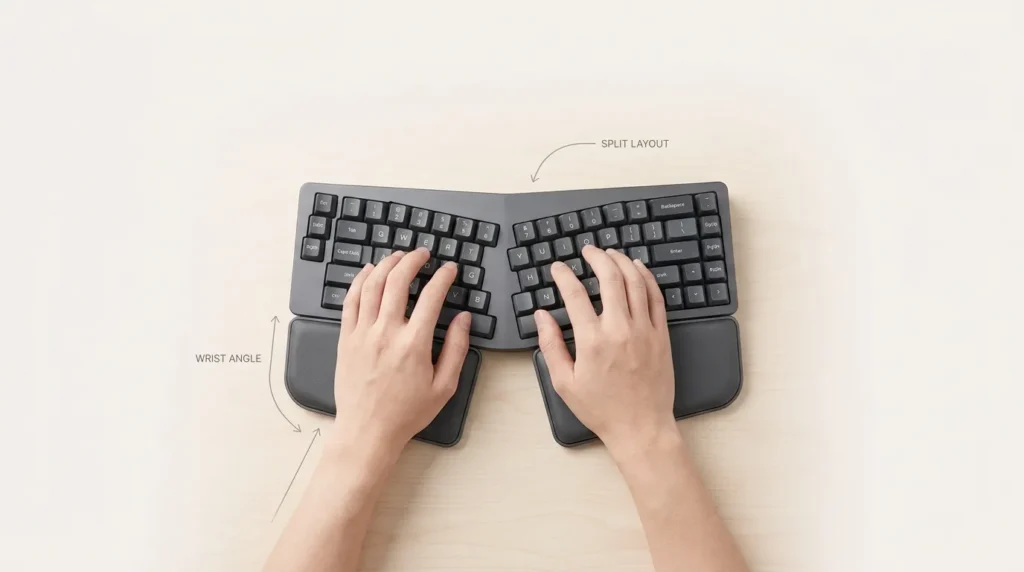
Ergonomic keyboards attempt to support this through:
- Split key layouts
- Tented designs
- Curved key frames
- Built-in wrist rests
Types of Ergonomic Keyboards (Quick Breakdown)
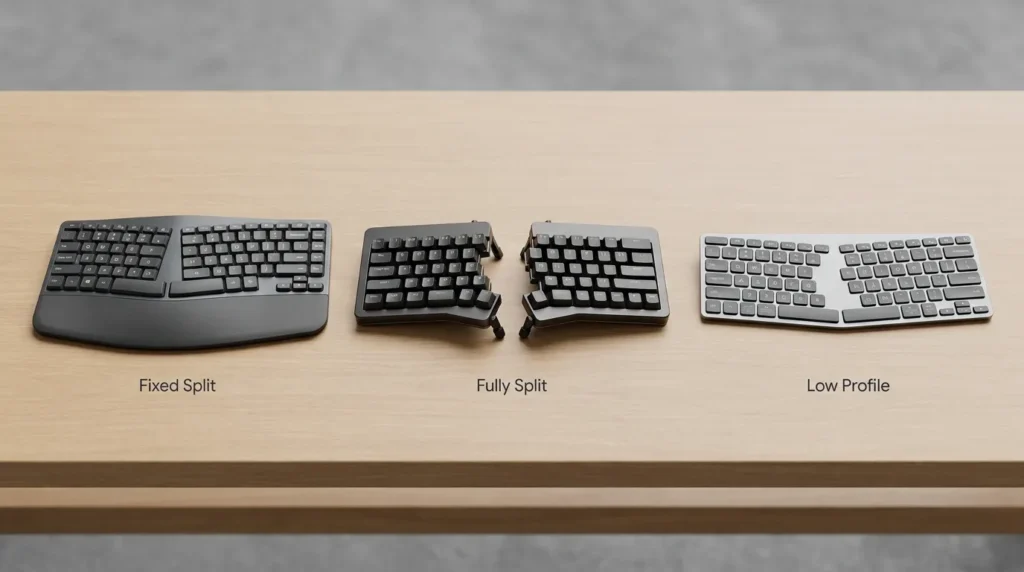
Before recommendations, here are the main categories:
1️⃣ Fixed Split (Curved Layout)
Keys are split into two angled sections but attached together.
Most popular type for remote workers.
2️⃣ Fully Split (Two Separate Halves)
Allows shoulder-width spacing and customized positioning.
Best for heavy typists and advanced ergonomic setups.
3️⃣ Low-Profile / Minimalist Ergonomic
Designed to reduce wrist extension without dramatic layout change.
Good transition option.
Best Ergonomic Keyboards for Remote Workers
1️⃣ Logitech ERGO K860 (Best Overall for Remote Work)
Why it works:
- Split curved layout
- Built-in wrist support
- Slight tenting angle
- Wireless + multi-device connectivity
Best for:
Remote professionals who want ergonomic benefits without extreme adjustment period.
Most users adapt within a few days.
2️⃣ Microsoft Sculpt Ergonomic Keyboard (Comfort-Focused)
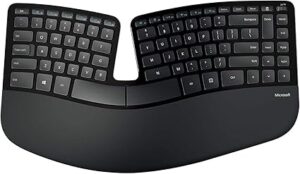
Why it works:
- Domed split design
- Cushioned palm rest
- Separate number pad
Best for:
Users who prefer a softer key feel and more relaxed wrist positioning.
3️⃣ Kinesis Freestyle2 (Fully Split Flexibility)
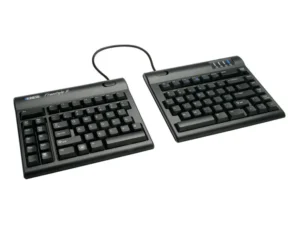
Why it works:
- Fully split design
- Adjustable spacing
- Optional tenting kits
Best for:
Remote workers with shoulder tension or narrower/wider arm spacing needs.
This design reduces inward shoulder rotation.
4️⃣ Logitech MX Keys (Low-Profile Alternative)
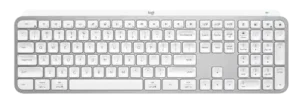
Why it works:
- Low-profile key travel
- Comfortable typing feel
- Clean minimalist design
Best for:
Remote workers who want improved wrist angle without a split layout.
Not fully ergonomic but significantly better than most laptop keyboards.
How to Know If You Need an Ergonomic Keyboard
Ask yourself:
- Do your wrists bend upward while typing?
- Do your wrists angle outward?
- Do you feel forearm tightness by afternoon?
- Do you type 4+ hours daily?
Harvard Health notes that repetitive strain injuries develop gradually through sustained posture patterns.
If discomfort builds slowly over the week, your keyboard may be part of the equation.
The Adjustment Period (Be Honest With Yourself)
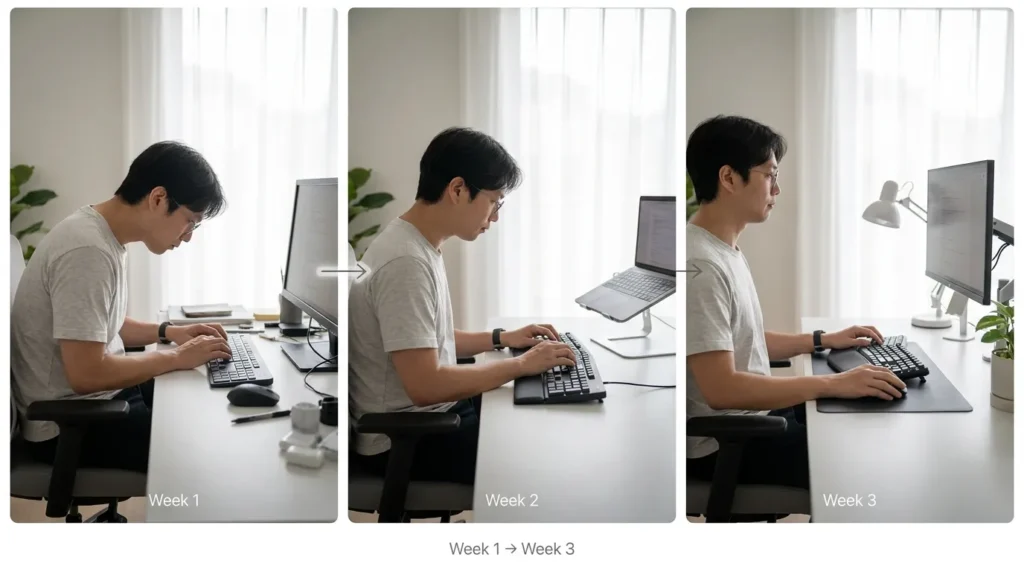
Most remote workers switching to a split keyboard experience:
Week 1: Slight awkwardness
Week 2: Increasing comfort
Week 3: Feels normal
It’s similar to changing chairs your muscles adapt.
If you give up after two days, you won’t experience the benefit.
Keyboard Alone Won’t Fix Everything
The UK Health and Safety Executive emphasizes full workstation alignment not single-device fixes.
Before upgrading:
- Check desk height
- Ensure elbows stay near 90 degrees
- Keep wrists neutral
- Use proper chair arm support
An ergonomic keyboard improves positioning but only within a properly aligned setup.
Should You Use a Wrist Rest?
Wrist rests can reduce contact pressure but should not encourage wrist extension.
Your palms should rest lightly not bear full weight.
The NIH suggests minimizing sustained pressure across the wrist area to reduce strain.
Light support, not compression.
Vertical Mouse + Ergonomic Keyboard Combo
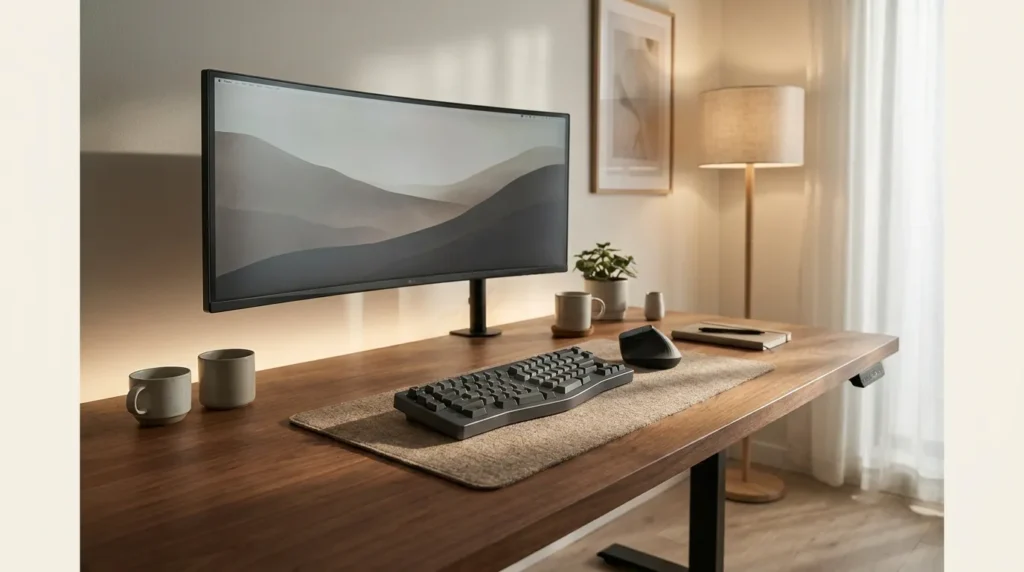
For heavy typists who also use a mouse frequently, combining:
Often produces noticeable forearm relief.
But again — alignment first.
Quick Remote Worker Typing Audit
Right now:
- Are your wrists flat?
- Are your elbows tucked close to your body?
- Are your shoulders relaxed?
- Is your keyboard too high?
If your shoulders feel slightly elevated, your desk may be too tall — not your keyboard’s fault.
Final Recommendation Framework
Choose:
Logitech ERGO K860
If you want strong ergonomic support with easy transition.
Microsoft Sculpt
If you prioritize cushioned comfort.
Kinesis Freestyle2
If you want maximum adjustability.
Logitech MX Keys
If you prefer a minimal learning curve.
The best keyboard is the one you’ll actually use daily.
FAQ
Are ergonomic keyboards worth it for remote workers?
For individuals typing several hours daily, ergonomic keyboards can promote more neutral wrist positioning and improve comfort.
How long does it take to adjust to a split keyboard?
Most users adapt within 1–3 weeks.
Do ergonomic keyboards prevent carpal tunnel?
They support better wrist positioning, but full workstation alignment and movement habits also matter.Is a mechanical keyboard ergonomic?
Mechanical keyboards vary. Some ergonomic models exist, but layout and wrist angle matter more than switch type.